How to Configure SoftBank Data SIM on iPhone and Android
Easy, detailed instructions for configuring a SoftBank Data SIM on iPhone and Android. Set up your SoftBank Data SIM correctly to enjoy a stable internet connection anytime, anywhere without relying on Wi-Fi.

You can set it up yourself by following the instructions below.
Note: It is recommended to perform the setup steps while connected to Wi-Fi.
1. Setting Up a SoftBank Data SIM on iPhone
Step 1: Insert the SIM Card and Check the Signal
Insert the SoftBank Data SIM into your iPhone, then check the signal bars on the screen.
If the signal bars appear normally: proceed to the next step.
If there is no signal: remove and reinsert the SIM card. If the issue persists, please contact Sky Mobile staff for further inspection and assistance.
Step 2: Check the SIM Configuration on Your Device
Before installing a new configuration, check whether your iPhone already has a previous SIM configuration installed.
If there is no existing configuration: proceed to Step 3.
If an old configuration is installed: delete it before installing the new one.
Follow this path:
Settings → General → VPN & Device Management → Select the configuration profile to delete → Delete Profile.
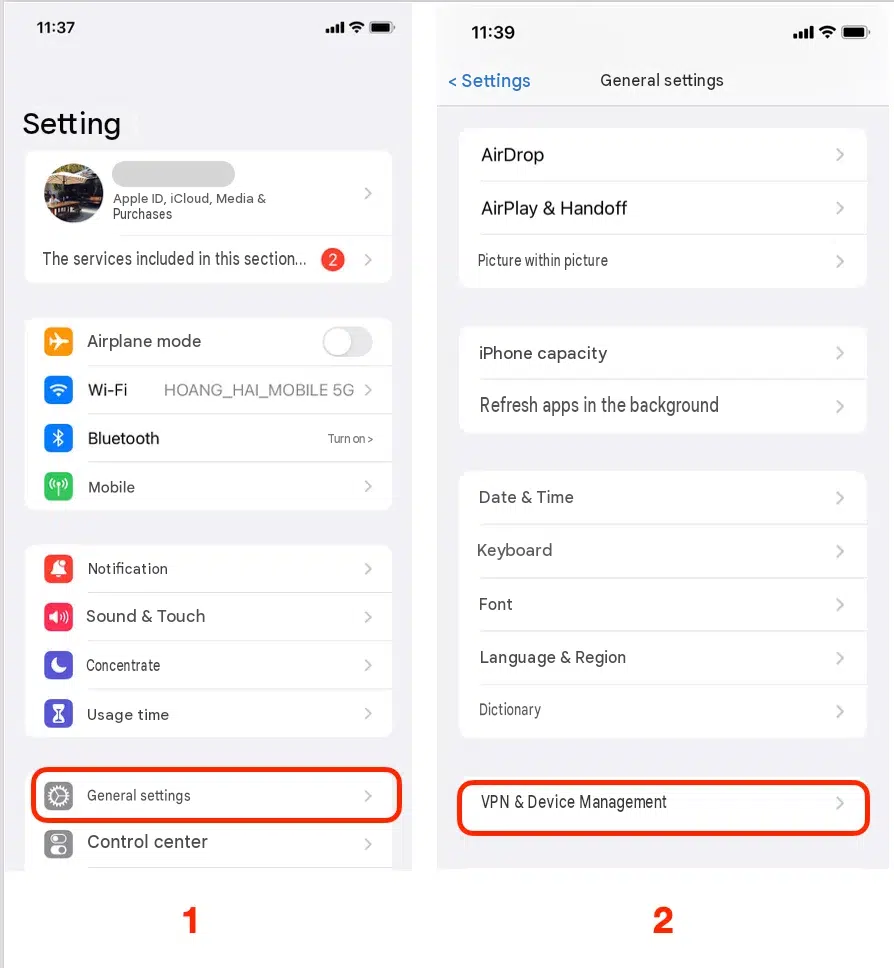
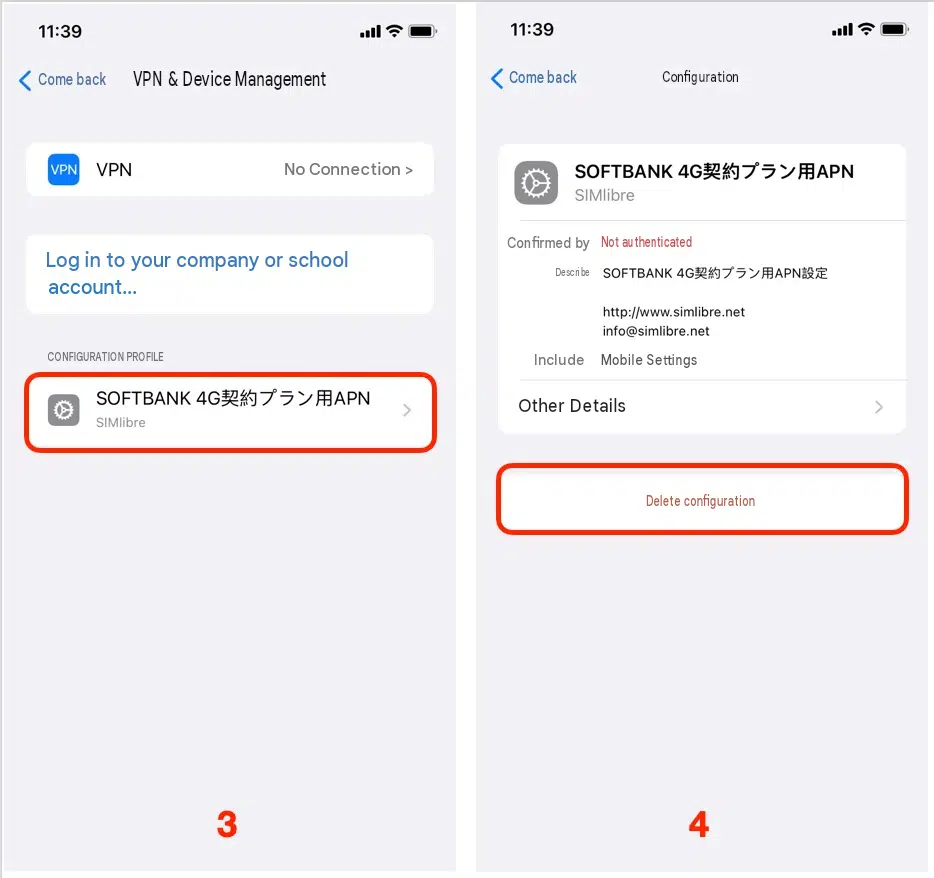
Step 3: Download the SIM Configuration
Use Wi-Fi to access the SIM configuration download link.
When a confirmation message appears asking whether you want to download the configuration profile, select "Allow" to continue.
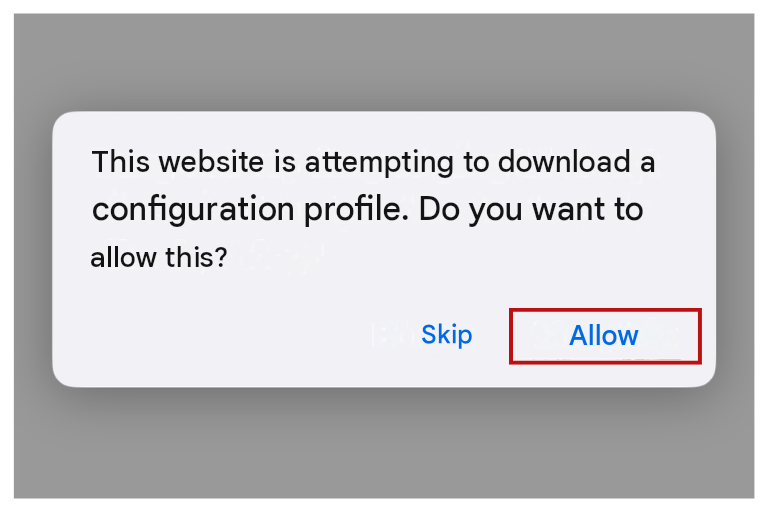
Step 4: Install the Configuration
After the configuration has been downloaded successfully, follow these steps:
Return to the iPhone home screen.
Go to Settings → General → VPN & Device Management.
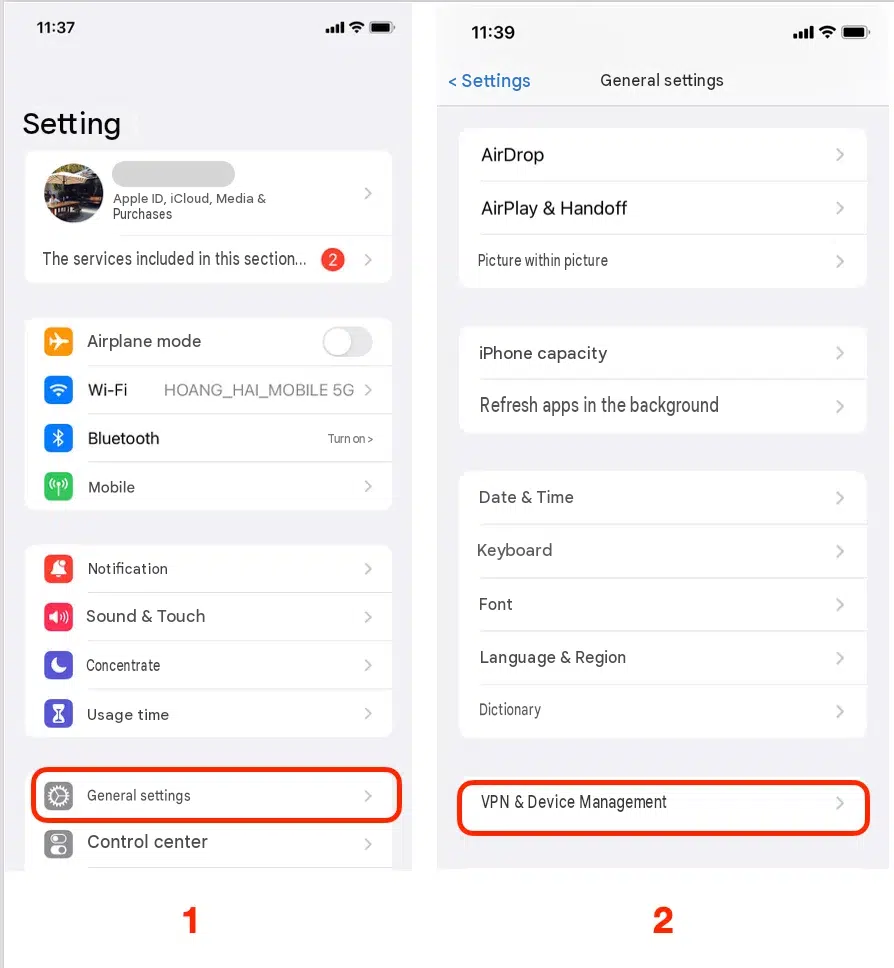
Find "Downloaded Profile".
Select "APN-SB-NEW" or "SB APN for Unlocked iPhone ver2.0".
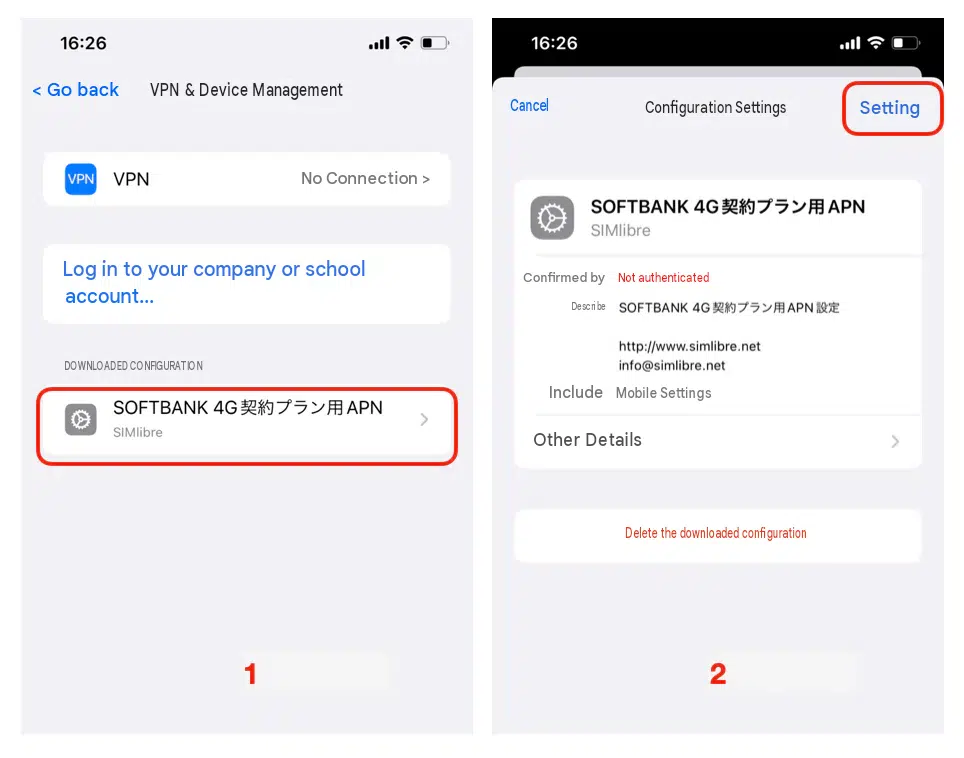
Tap "Install" in the upper-right corner.
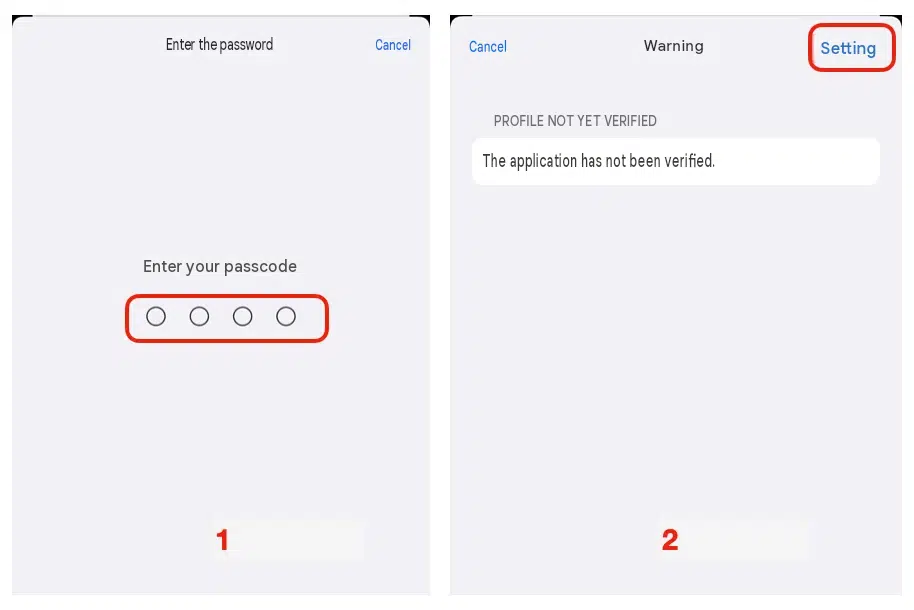
Enter your iPhone passcode if prompted, then tap "Install" to continue.
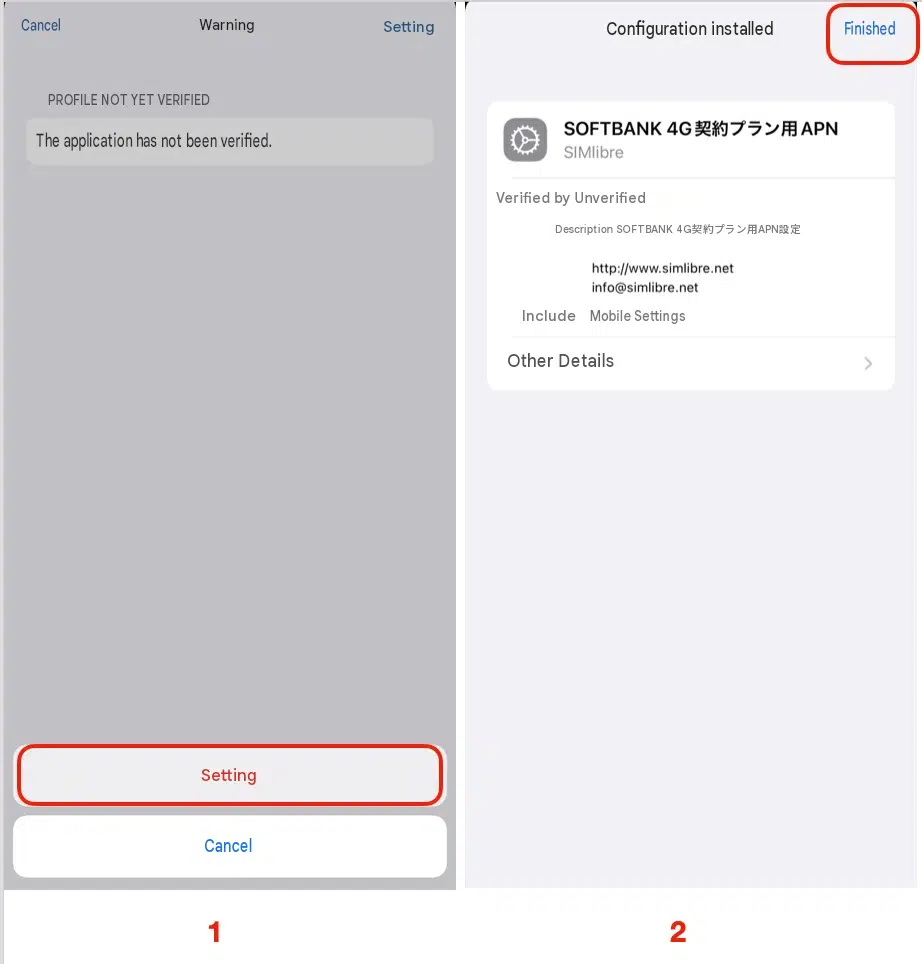
Tap "Install" once again.
Tap "Done" in the upper-right corner to complete the installation.
Step 5: Connect to the Internet
After completing the installation, turn off Wi-Fi and wait a few minutes for the phone to connect to the mobile network.
If the SIM is recognized and the configuration is correct, the device should be able to access the Internet using mobile data.
2. Setting Up a SoftBank Data SIM on Android
Step 1: Check the APN
On your Android phone, go to:
Mobile Network → Access Point Names (APN)
If "SOFTBANK 4G" is already listed, simply select this configuration.
If it is not available, create a new APN and enter the information in Step 2.
Step 2: Enter the APN Settings
Enter the following configuration details:
Name: softbank
APN: plus.4g
Username: plus
Password: 4g
Authentication Type: Leave blank
Note: all configuration information must be entered in lowercase letters.
After entering all the details, save the new APN and select it for use.
Finally, turn on mobile data and check whether you can access the Internet.