Guide to Setting Up the Speed Wi-Fi HOME 5G L13 from A to Z
A complete guide to setting up the Speed Wi-Fi HOME 5G L13 from A to Z: insert the SIM card, connect the power, find the WiFi network, change the password, and quickly check the Internet connection. Easy-to-follow and detailed.
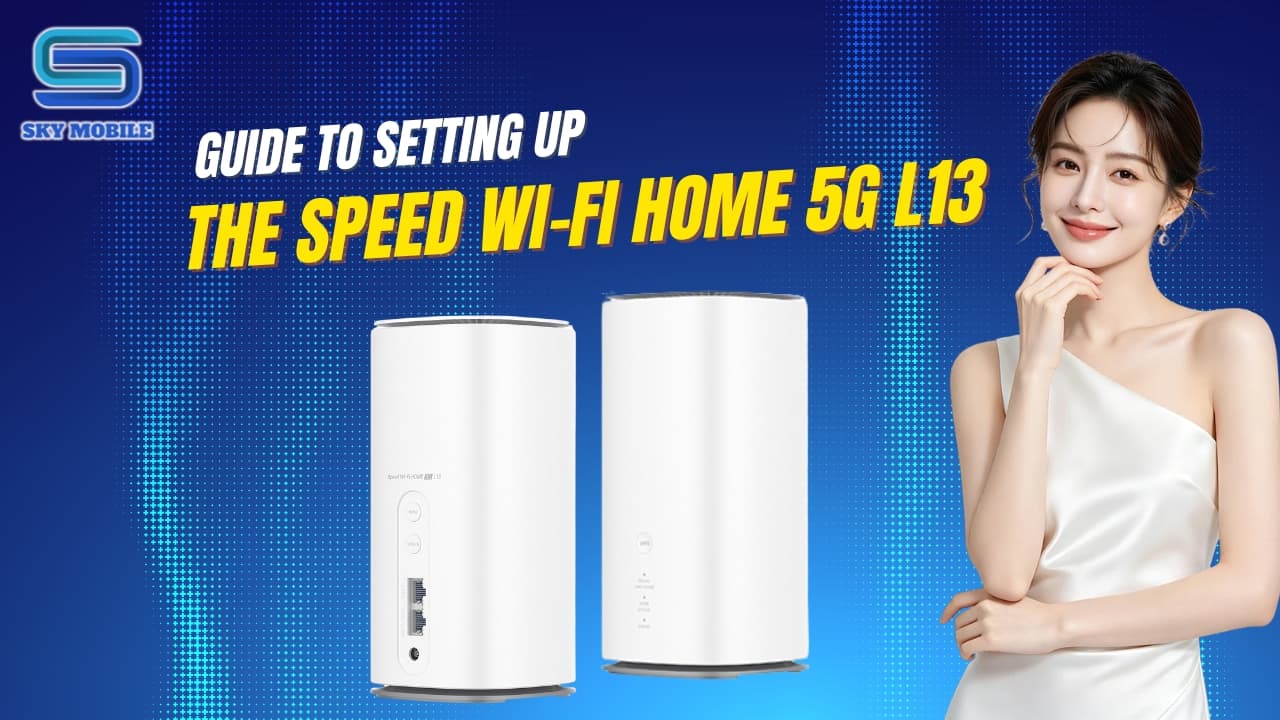
Speed Wi-Fi HOME 5G L13 is a SIM-based 5G WiFi router designed to provide Internet access for smartphones, computers, TVs, gaming consoles, and other devices in your home. One important point to note is that the L13 does not have a dedicated power button: once the power adapter is properly connected to the device and a power outlet, the device will start automatically.
If you have just received your Speed Wi-Fi HOME 5G L13 and are not sure where to start, you can follow the 8 steps below in order.
1. Insert the SIM into the Speed Wi-Fi HOME 5G L13
Before connecting the power, insert the SIM card into the device.
Preparation
Speed Wi-Fi HOME 5G L13
A SIM card compatible with the device
The included AC power adapter
A smartphone or computer for the connection process
How to insert the SIM
Place the L13 in an easy-to-access position, preferably on a flat surface.
Locate the SIM slot cover on the bottom of the device.
Open the SIM slot cover.
Insert the SIM card in the correct direction according to the shape of the slot.
For the L13, the metal contact side of the SIM should face upward when inserting the SIM into the slot.
Gently push the SIM into the slot until it is properly positioned.
Close the SIM slot cover.
Do not force the SIM card if you feel resistance. The SIM must be positioned in the correct direction and location before being pushed into the slot to avoid damaging the SIM card or SIM slot. The official au instructions also advise users not to touch the metal contacts and not to use excessive force when inserting or removing the SIM.
Note
If you are using a Data SIM or Voice + Data SIM provided specifically for the L13, make sure the SIM has been activated and the plan is still valid before checking the Internet connection.
2. Connect the power
After inserting the SIM, connect the device to a power source.
Follow these steps
Take the AC power adapter included with the Speed Wi-Fi HOME 5G L13.
Connect the DC plug of the power adapter to the power port on the L13.
Plug the power adapter into a power outlet.
Make sure all connections are firmly connected.
The L13 does not have a physical power button. The device will automatically turn on when the power adapter is connected to a power outlet.
Where should you place the L13?
After connecting the power, place the device:
Near a window or in a location with good signal reception.
In a well-ventilated area.
On a stable, flat surface.
Away from enclosed cabinets or large objects that may block the signal.
Away from excessive heat, moisture, or dust.
For 5G use, the device's location can significantly affect signal quality and Internet speed. UQ WiMAX also recommends placing the L13 near a window or in a location with minimal obstructions.
3. Turn on the Speed Wi-Fi HOME 5G L13
After connecting the power, the L13 will start automatically.
You do not need to look for or press a Power button as you would on many other routers.
When the device starts:
The status indicators on the device will change during the startup and network search process.
Wait for the device to complete the startup process instead of immediately trying to connect to WiFi.
4. Wait for the L13 to connect to the network
After turning on, the L13 needs some time to detect the SIM card, search for a mobile network, and establish an Internet connection.
Check the STATUS indicator on the front of the device.
When the STATUS indicator changes to a steady green state, the initial startup and basic connection setup are complete. This is also the status used by UQ WiMAX to indicate that the initial setup has been completed.
If there is no network connection
If the device does not connect after waiting for a while, check the following in order:
Is the SIM inserted correctly?
Has the SIM been activated?
Is the plan still valid?
Is the power adapter firmly connected?
Is the device placed in an area with too many signal obstructions?
Try restarting the L13.
Do not immediately assume that the device is defective simply because the Internet does not work immediately after connecting the power.
5. Find the WiFi name (SSID) and password
Once the L13 has started, you need the WiFi information to connect your smartphone or computer.
The required information includes:
SSID: The WiFi network name of the L13.
Password/Security Key: The WiFi password.
Where can you find this information?
You can check:
The label on the bottom of the Speed Wi-Fi HOME 5G L13.
The "Wi-Fi Initial Setup" label included with the device.
The default SSID and WiFi password are printed on the initial setup label and on the bottom of the device.
The L13 SSID usually starts with "SP..." depending on the settings of each device.
Do not confuse the WiFi password with the administrator login password
This is an important point that can easily cause confusion. Pay attention to the difference to avoid problems during setup and use.
The L13 may have:
Information | Purpose |
|---|---|
SSID | WiFi network name used to find and connect to the network |
WiFi Password/Security Key | Password used by smartphones and computers to connect to WiFi |
Setting Tool Password | Password used to log in to the device's administrator page |
The administrator login password is not the WiFi password. The default administrator password is also printed on the setup label or on the bottom of the device.
6. Connect your smartphone to the L13 WiFi
Once you have the SSID and password, you can connect your smartphone.
On iPhone
Open "Settings".
Select "Wi-Fi".
Turn on WiFi.
Wait for the list of available networks to appear.
Find the Speed Wi-Fi HOME 5G L13 SSID.
Tap the correct WiFi network.
Enter the WiFi password shown on the label.
Select "Join".
Wait for the ✓ mark to appear next to the WiFi network.
When the WiFi icon appears in the status bar, your iPhone is connected to the L13.
On Android
The menu names may vary depending on Samsung, OPPO, Xiaomi, Google Pixel, or other brands, but the basic steps are similar:
Open "Settings".
Select "WiFi" or "Connections → WiFi".
Turn on WiFi.
Find the L13 SSID.
Tap the network name.
Enter the WiFi password.
Select "Connect".
Check the WiFi icon on your smartphone.
The L13 also supports other connection methods such as WPS, NFC, and the ZTELink JP app. However, for the initial setup, connecting manually using the SSID and password is the simplest and easiest method to verify.
7. Open a browser to check the Internet connection
Successfully connecting to WiFi does not necessarily mean that the L13 has Internet access. Your smartphone may be connected to the router while the SIM is still unable to access the mobile network.
Therefore, perform one additional check.
How to check
Keep your smartphone connected to the L13 WiFi.
Open Safari on iPhone or Chrome/a browser on Android.
Visit any website.
Wait for the page to load completely.
If the website opens normally, the basic setup is complete.
You can try:
Google
YouTube
A news website
A website or service you normally use
If your smartphone says "Connected" but there is no Internet
Check the following in order:
Step 1: Check the STATUS indicator on the L13.
Step 2: Check whether the SIM is detected.
Step 3: Check whether the Data plan is still valid.
Step 4: Move the L13 closer to a window or to a more open location.
Step 5: Turn WiFi off and back on on your smartphone.
Step 6: Restart the L13.
If there is still no Internet connection, you may need to check the SIM/APN configuration or the SIM service status, depending on the type of SIM you are using.
8. Change the WiFi password
After successfully connecting to the Internet, you should consider changing the default WiFi password for better privacy and easier management.
The L13 allows you to change the SSID and WiFi password through the Speed Wi-Fi HOME setting tool. The 2.4GHz and 5GHz bands can be configured separately.
Step 1: Connect your smartphone to the L13
First, make sure your smartphone is connected to the Speed Wi-Fi HOME 5G L13 WiFi network.
Step 2: Open the administrator page
Open Safari or Chrome.
Enter the following address in the address bar:
Then access the page.
This address is used to open the Speed Wi-Fi HOME setting tool for the L13.
Note: Enter the address in the browser's address bar, not in the Google search box.
Step 3: Log in
When the login screen appears:
Enter the device's administrator password.
The default password can be found on the "Wi-Fi Initial Setup" label or on the bottom of the L13.
Select "Login".
When accessing the page for the first time, the device may ask you to confirm certain notifications or change the administrator password. Follow the instructions displayed on the screen.
Step 4: Open the WiFi settings
In the administrator interface:
Find "Router".
Select "Settings".
Open "Wi-Fi Management".
Select "Basic Settings".
Here, you can adjust:
WiFi name (SSID).
WiFi password.
2.4GHz WiFi settings.
5GHz WiFi settings.
The SSID and password can be changed under Wi-Fi Management → Basic Settings.
Step 5: Set a new password
We recommend setting a password that:
Contains at least 8 characters.
Includes letters and numbers.
Does not contain easily guessed information such as your name, date of birth, or phone number.
Is not too similar to your personal account passwords.
According to the L13 support instructions, the WiFi password can contain 8–32 characters, while the SSID can contain 1–29 characters.
Step 6: Save the changes
After entering the new information:
Check the SSID.
Check the password.
Select "Apply".
Wait for the device to apply the new settings.
After changing the password, devices currently using the old WiFi password will be disconnected. You will need to reconnect each device using the new password.
Speed Wi-Fi HOME 5G L13 Setup Complete
If you have completed all the steps above, the initial setup process can be summarized as:
Insert SIM → Connect power → Device starts automatically → Wait for STATUS to stabilize → Find SSID/password → Connect smartphone → Open a website to check the Internet → Change WiFi password.
After setup is complete, you can use the L13 to connect multiple devices in your home. If you want to change advanced settings such as 2.4GHz/5GHz WiFi, network information, software updates, or security options, you can access the administrator interface at 192.168.0.1.
Common Setup Problems
Issue | First thing to check |
|---|---|
L13 indicator does not light up | Check the power adapter and power outlet |
SIM not detected | Remove the SIM, check its orientation, and insert it again |
WiFi connected but no Internet | Check the SIM/Data plan status |
SSID cannot be found | Check whether the L13 has completed startup |
Password entered but connection fails | Check the Security Key on the label |
Forgot the new WiFi password | Check the settings or restore the device according to the device instructions |
Cannot access 192.168.0.1 | Make sure the smartphone is directly connected to the L13 WiFi |
Internet stopped working after changing the password | Reconnect using the new WiFi password |