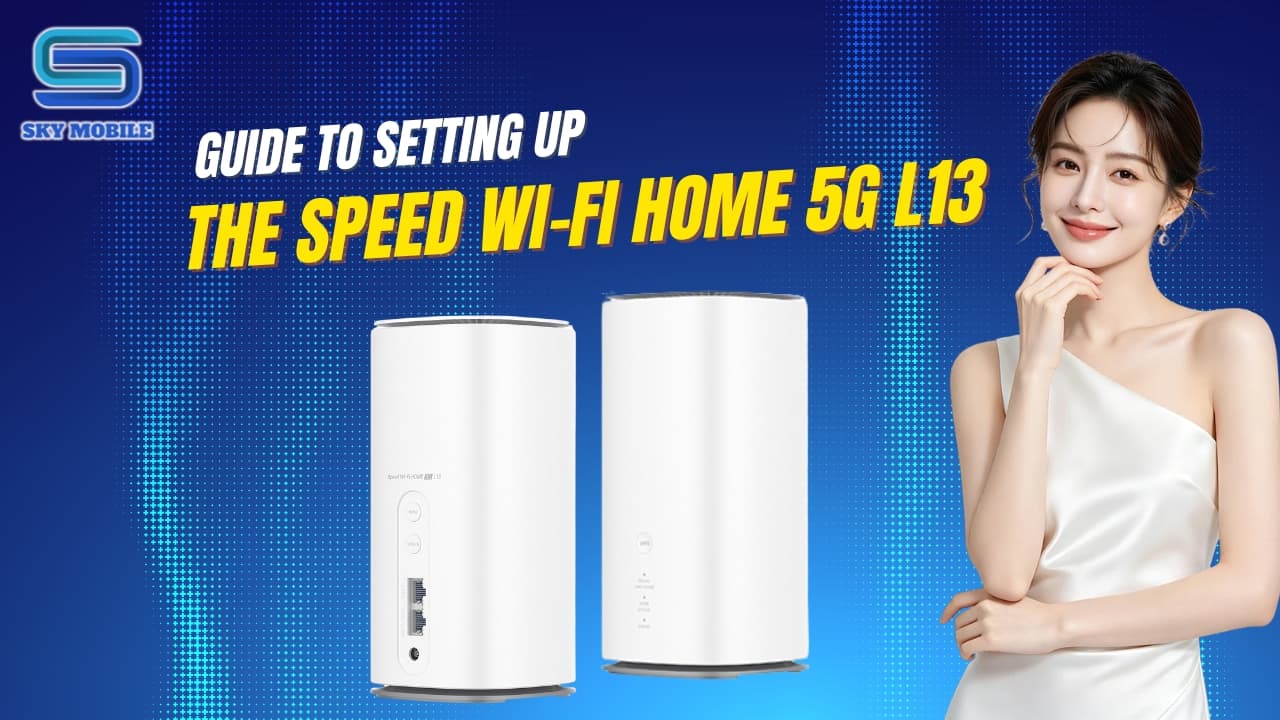
QUICK SETUP GUIDE FOR THE SPEED WI-FI HOME 5G L13
The Speed Wi-Fi HOME 5G L13 is a popular 5G Wi-Fi router thanks to its stable connection, multiple connection methods, and simple setup. In this article, you'll find everything you need to get started, from inserting the SIM and connecting to Wi-Fi, to accessing the admin page, updating the firmware, and troubleshooting common issues.
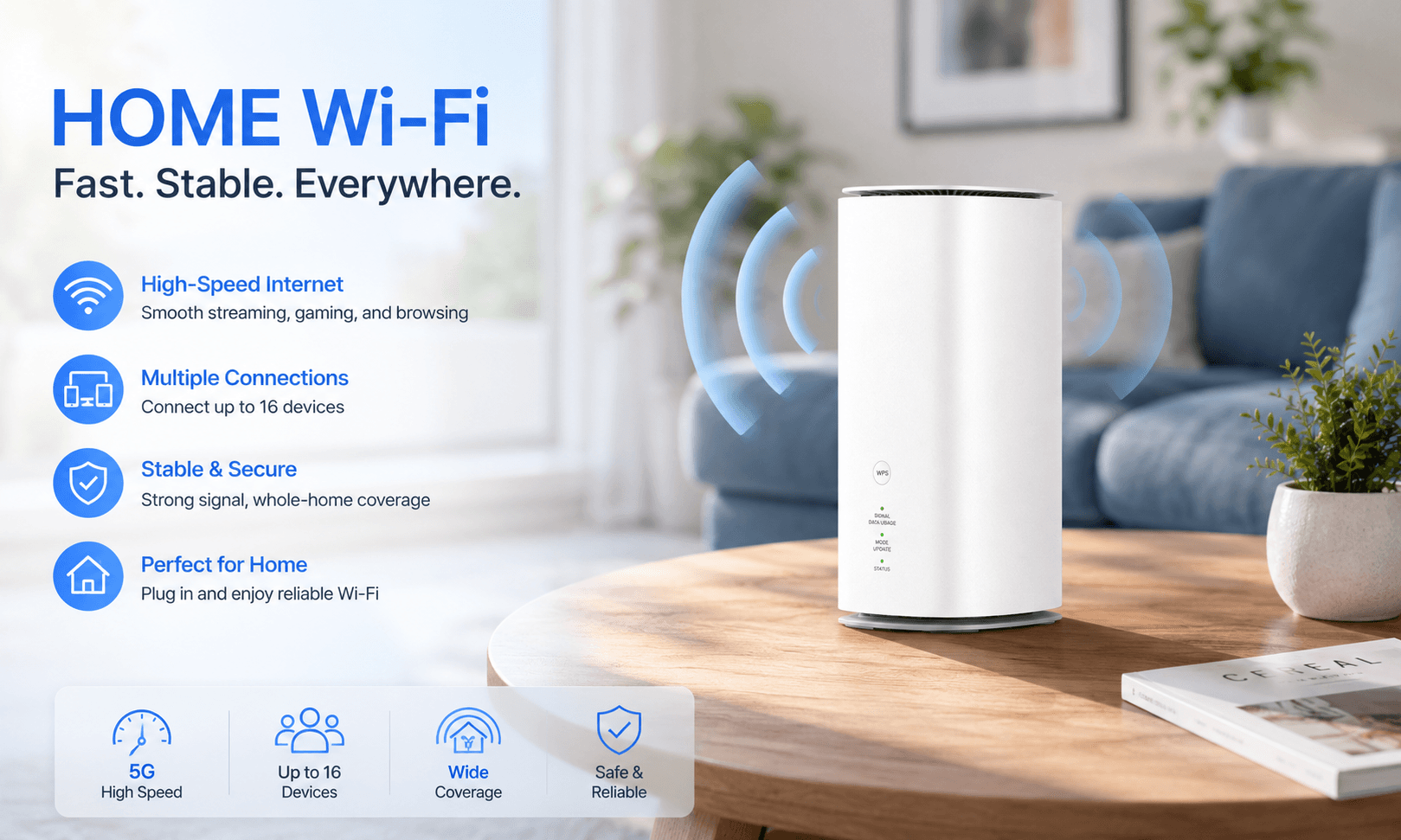
QUICK SETUP GUIDE FOR THE SPEED WI-FI HOME 5G L13
Getting the device up and running only takes a few basic setup steps: inserting the SIM, connecting the power, and setting up Wi-Fi. The Speed Wi-Fi HOME 5G L13 supports multiple connection methods, making setup quick and convenient even for first-time users. Below is a detailed step-by-step guide to help you start using the device with ease.

Step 1. Insert the SIM
Open the SIM slot cover
Insert the Nano SIM in the correct orientation
Metal chip side facing up
Push the SIM in until you hear a "click"
Close the SIM slot cover
Note:
Only insert/remove the SIM when the power is disconnected
Do not use the SIM with a conversion adapter
If the SIM is inserted incorrectly, the STATUS light will blink red
Step 2. Power on the device
Plug the adapter into an AC outlet
Plug the DC connector into the device's power port
The device will start up automatically
Note: The Speed Wi-Fi HOME 5G L13 does not have a power button
Step 3. Connect to Wi-Fi
The simplest way: connect using the SSID and password
Turn on Wi-Fi on your phone or computer
Find the device's Wi-Fi name (SSID)
Enter the Wi-Fi password
Confirm the connection is successful
The SSID and password are printed on:
The bottom of the device
The "Wi-Fi Initial Setup" label
Connect via QR code
Open your camera or a QR scanning app
Scan the QR code on the bottom of the device or on the Wi-Fi Initial Setup label
Confirm the connection
Connect via NFC
Turn on NFC on your phone
Tap your phone against the NFC icon on the router
Follow the on-screen instructions
Copy Wi-Fi settings from your old router
If your old router supports WPS:
Turn on the L13
Press and hold the WPS button on the L13 for more than 3 seconds
Activate WPS on the old router
Wait for the copying process to finish
Turn off the old router
The device will copy:
The Wi-Fi name (SSID)
The Wi-Fi password
Devices already connected to the old router will not need to be set up again.

Step 4. Access the admin page
Use it to:
Change the Wi-Fi name
Change the Wi-Fi password
Check network status
Configure advanced settings
Steps:
Connect to the device's Wi-Fi
Open a web browser
Go to: http://192.168.0.1
Select English as the language
Enter the login password printed on the Wi-Fi Initial Setup label or on the bottom of the device.
First login
Confirm the privacy policy
Change the admin password
Firmware update
Make sure the device is connected to the Internet
Do not disconnect the power during the update
Place the device where the signal is strong
If the update fails:
Move the device to a location with a better signal
Try updating again
Quick troubleshooting
Can't connect to Wi-Fi
Check whether Wi-Fi is turned on on the device
Try connecting manually using the SSID and password
Can't access the Internet
Check the coverage area
Check the signal strength
Check the connection status on the admin page
Slow network or frequent disconnections
Change the device's location
Restart the router
Unplug and replug the LAN cable
Remove and reinsert the SIM if needed
Information to keep on hand
The "Wi-Fi Initial Setup" label includes:
Wi-Fi name (SSID)
Wi-Fi password
Login URL
Admin password
Keep or stick the label somewhere easy to find for convenient use.

BASIC INFORMATION ABOUT THE SPEED WI-FI HOME 5G L13
Before diving into the setup and usage steps, let's take a look at some basic information about the Speed Wi-Fi HOME 5G L13. It's a 5G Wi-Fi router designed for homes and offices, offering high-speed Internet access over 5G/LTE networks. The device supports flexible connection methods — Wi-Fi, QR code, NFC, WPS, or a LAN cable — and can copy Wi-Fi settings from an old router to make switching over quicker and more convenient.
1. Important notes
Read the instructions carefully before use
Use the device indoors only
Keep a minimum distance of 20cm between the device and your body while it is operating
The signal may be unstable even within the coverage area if the signal quality is weak
Back up important data regularly
2. Safety warnings
Do not place the device near high heat, open flames, or inside a closed car under direct sunlight
Do not place it in a microwave or a pressurized appliance
Do not let water, liquids, or foreign objects get into the power port or LAN port
Do not disassemble or repair the device yourself
If you notice an unusual smell, smoke, abnormal noise, or overheating, disconnect the power immediately
3. Using the power adapter
Only use the specified power adapter
Do not use it if the power cord is damaged
Do not touch the power adapter during a thunderstorm
Always plug the power connector in securely
Unplug it when not in use or before cleaning
4. Using the SIM
Insert the SIM in the correct orientation
Do not use the SIM with a conversion adapter
Do not bend, heat, or strike the SIM
Be careful of the SIM's cut edge when handling it
5. Device care
Operating temperature: 0°C – 40°C
Operating humidity: 5% – 90%
Place the device in a well-ventilated location
Do not cover the ventilation slots
Clean with a soft, dry cloth
Do not use gasoline, solvents, or harsh cleaning agents
6. Device compatibility
Supports IEEE 802.11a/b/g/n/ac/ax Wi-Fi standards
Compatible with iPhone, iPad, Android, Windows, and macOS computers
Supports 1000BASE-T and 2.5GBASE-T LAN ports
Supports popular browsers such as Chrome, Edge, Firefox, Safari, and Opera
7. 5GHz Wi-Fi note
Under Japanese regulations, the 5.2GHz and 5.3GHz bands may not be used outdoors.