SPEED WI-FI DOCK 5G 01 USER GUIDE: COMPLETE A–Z INSTRUCTIONS
If you have just purchased the Speed Wi-Fi DOCK 5G 01 or recently subscribed to a Pocket WiFi service in Japan, you may have questions such as: How do I insert the SIM card? Where can I find the WiFi password? Do I need to configure the APN? And how can I maintain a stable 5G connection?
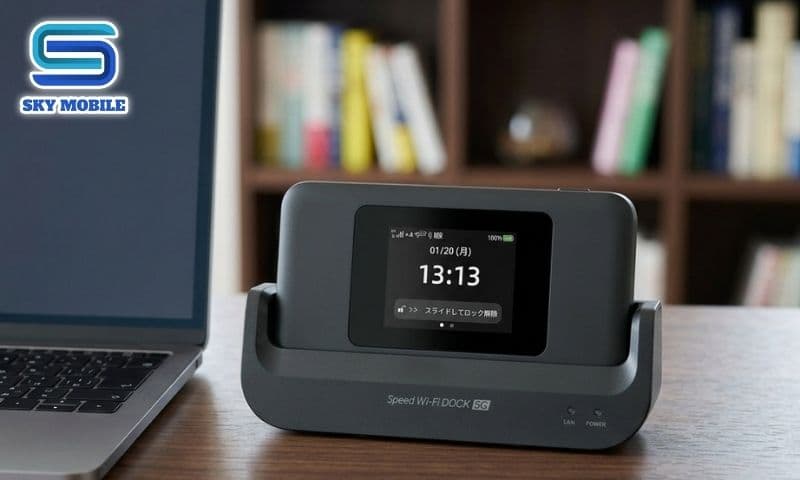
In practice, this is one of the easiest 5G WiFi routers to use today. However, a small mistake, such as inserting the Nano SIM incorrectly or configuring the APN incorrectly, may cause the device to show a network signal but fail to access the Internet.
This guide by Sky Mobile will show you how to use the Speed Wi-Fi DOCK 5G 01, from basic operations to advanced settings, helping you keep the device running stably and make the most of 5G network speeds in Japan.
SPEED WI-FI DOCK 5G 01 TECHNICAL SPECIFICATIONS
Specification | Details |
|---|---|
Network | 5G Sub-6 / 4G LTE |
WiFi Standard | WiFi 6 |
Battery | 5,400mAh |
Battery Life | Approximately 9 hours of continuous use |
Connected Devices | Up to 48 devices |
Charging Port | USB Type-C |
SIM Type | Nano SIM |
Display | Color Touchscreen |
Compatible Operating Systems | Android, iOS, Windows, macOS |
WHO IS THE SPEED WI-FI DOCK 5G 01 SUITABLE FOR?
As a Japanese mobile WiFi device, the Speed Wi-Fi DOCK 5G 01 is suitable for a wide range of users:
International students who need a stable Internet connection for online learning.
People living and working in Japan.
Families who do not want to install a fixed-line Internet connection.
People who frequently travel for work or between different regions.
Travelers looking for a high-speed 5G Pocket WiFi in Japan.
Thanks to its compact design and support for multiple simultaneous connections, you can use it with smartphones, laptops, tablets, cameras, and other devices without carrying a bulky modem.
GETTING TO KNOW THE DEVICE BUTTONS AND FUNCTIONS
Before starting the Speed Wi-Fi DOCK 5G 01 setup, you should understand the location and function of each part of the device.

TOUCHSCREEN
The touchscreen is the main control center of the device. You can monitor almost all operating information directly from the screen without logging into the administration page.
The display shows:
4G/5G signal strength
Remaining battery level
WiFi network name (SSID)
Default WiFi password
Number of connected devices
Data usage
System notifications
POWER BUTTON
The power button is located on the side of the device. Common operations include:
Press and hold for approximately 3 seconds to turn on the device.
Press and hold for approximately 3 seconds while the device is running to turn it off.
Press once to turn the screen on or off.
USB TYPE-C PORT
The USB Type-C port is used for:
Charging the battery.
Connecting the device to a computer.
Updating the software when required.
It is recommended to use a compatible charger to help maintain battery life.
NANO SIM TRAY
The Speed Wi-Fi DOCK 5G 01 uses a Nano SIM. Do not remove or insert the SIM while the device is powered on, as the SIM may not be recognized properly after restarting.
HOW TO INSERT THE SIM CARD INTO THE SPEED WI-FI DOCK 5G 01
Inserting the SIM correctly is the first step to getting the device connected to the Internet. If the SIM is inserted incorrectly or does not make proper contact, the device may display "No SIM" or fail to connect to the network.
STEP 1: TURN OFF THE DEVICE
Press and hold the power button for approximately 3 seconds and select Power Off. Wait until the screen turns off completely before continuing.
STEP 2: OPEN THE NANO SIM TRAY
Use your hand or the supplied SIM tool to open the SIM tray. Handle it gently to avoid bending or damaging the tray.
STEP 3: INSERT THE NANO SIM CORRECTLY
Place the Nano SIM according to the markings on the SIM tray. Make sure that:
The metal contact side faces down.
The beveled corner of the SIM matches the beveled corner of the tray.
Do not use excessive force when closing the tray.
STEP 4: TURN ON THE DEVICE
After inserting the SIM, press and hold the power button for approximately 3 seconds. The device will take around 30–60 seconds to search for a network signal. If the screen displays a 4G or 5G icon, the SIM has been inserted successfully.
Note: If the device has a network signal but cannot access the Internet, you may need to configure the APN for the Speed Wi-Fi DOCK 5G 01. This process is explained in detail below.
HOW TO CONNECT THE SPEED WI-FI DOCK 5G 01 TO A PHONE OR COMPUTER
Once the device has connected to the network, you can access the Internet in just a few steps.

CONNECT USING THE WIFI NAME AND PASSWORD
On your phone or computer, turn on WiFi and find the network name (SSID) displayed on the device screen. Enter the default password and select Connect. If everything is correct, you will be able to access the Internet within a few seconds.
CONNECT USING A QR CODE
Some versions support quick connection via QR Code. Simply open your phone's camera, scan the QR code displayed on the device screen, and select Connect. This is the fastest method and helps minimize password entry errors.
GETTING FAMILIAR WITH THE SETTINGS INTERFACE
After connecting successfully, take a few minutes to familiarize yourself with the settings available on the touchscreen.
On the main screen, you will find options such as WiFi Settings, Data Usage, Connected Devices, Network Settings, and System. These settings allow you to change the WiFi name, update the password, manage connected devices, configure the APN, and perform a factory reset when necessary.
HOW TO CHANGE THE WIFI NAME AND PASSWORD ON THE SPEED WI-FI DOCK 5G 01
One of the first things you should do after receiving the device is change the default WiFi name and password. This makes your network easier to identify when multiple WiFi networks are nearby and improves security by preventing unauthorized access. To make these changes, select WiFi Settings from the main screen.
CHANGE THE WIFI NAME (SSID)
In the SSID section, enter your preferred new network name.
We recommend using a short, easy-to-remember name such as:
SkyMobile_5G
Home_WiFi
Japan_5G
Avoid using your phone number or personal information to protect your privacy.
CHANGE THE WIFI PASSWORD
Next, select Password and enter a new password. A secure password should:
Contain at least 8 characters.
Include uppercase letters, lowercase letters, and numbers.
Avoid simple combinations such as 12345678 or password.
After selecting Save, the device will restart its WiFi function. All phones and computers previously connected to the network will need to enter the new password again.
HOW TO CONFIGURE THE APN ON THE SPEED WI-FI DOCK 5G 01
In most cases, the device will automatically detect the network configuration when a SIM card is inserted. However, if you switch carriers or use a SIM card from another provider, APN configuration may be required.

WHEN DO YOU NEED TO CONFIGURE THE APN?
You should check the APN if:
The device has a network signal but no Internet connection.
The 4G or 5G icon is displayed but websites cannot be accessed.
You have just inserted a new SIM card.
The carrier requires manual configuration.
APN CONFIGURATION STEPS
From the main screen, go to:
Settings → Network Settings → APN
Select Add APN and enter the information provided by your SIM provider:
APN
Username (if required)
Password (if required)
Authentication Type (if required)
After completing the settings, select Save, choose the newly created APN profile, and restart the device.
Tip: If you are unsure about the correct APN settings, contact your SIM provider instead of trying different configurations, as incorrect settings may cause connection problems.
HOW TO CHECK YOUR DATA USAGE
For SIM plans with a limited data allowance, monitoring your data usage helps prevent unexpected speed reductions. Open Data Usage to view:
Total data used.
Daily data usage.
Monthly data usage.
Number of devices currently using data.
If you frequently share your WiFi connection with multiple users, check this section regularly to manage your data usage effectively.
HOW TO RESET THE SPEED WI-FI DOCK 5G 01
If you forget your WiFi password or the device becomes unstable after changing settings, you can restore it to its original state. There are two ways to reset the device:

METHOD 1: RESET FROM THE MENU
Go to:
Settings → System → Factory Reset
Select Reset and confirm.
METHOD 2: RESET USING THE PHYSICAL RESET BUTTON
If your device has a Reset button:
Turn on the device.
Use the SIM eject tool to press and hold the Reset button for approximately 10 seconds.
Wait for the device to restart.
After resetting, the WiFi name, password, and all previous settings will be restored to their default values.
COMMON ISSUES WHEN USING THE SPEED WI-FI DOCK 5G 01
During use, you may encounter some of the following common issues.
1. THE DEVICE DOES NOT RECOGNIZE THE SIM
Possible causes:
The SIM is inserted incorrectly.
The SIM has not been activated.
The SIM is damaged.
Solutions:
Remove and reinsert the SIM.
Test the SIM in another phone.
Contact your provider if the SIM still does not work.
2. THE DEVICE HAS A SIGNAL BUT NO INTERNET CONNECTION
This is one of the most common issues when changing SIM cards. Check:
Whether the APN settings are correct.
Whether your plan still has available data.
Restart the device.
3. THE 5G ICON DOES NOT APPEAR
This does not necessarily mean there is a problem with the device. Possible causes include:
The area does not have 5G coverage.
The plan only supports 4G.
5G service has not been activated on the SIM.
4. SLOW OR UNSTABLE WIFI
If too many devices are connected at the same time or the mobile signal is weak, the connection speed may decrease. You should:
Place the device near a window or in an open area.
Limit the number of connected devices.
Restart the device after several days of continuous use.
5. THE DEVICE GETS HOT DURING USE
When using 5G WiFi for extended periods or using the device while charging, an increase in temperature is normal. However, avoid:
Placing the device under direct sunlight.
Leaving it inside a closed car.
Covering the ventilation openings.
6. BATTERY DRAINS QUICKLY
If the battery drains faster than usual:
Reduce the screen brightness.
Turn off the screen when not in use.
Avoid using the device while charging for extended periods.
TIPS FOR KEEPING THE SPEED WI-FI DOCK 5G 01 RUNNING STABLY
To maintain good performance, keep the following tips in mind:
Restart the device approximately once a week to refresh the network connection.
Charge the battery when it reaches around 20–30% and avoid frequently letting it drain completely.
Keep the device in a well-ventilated area and avoid high temperatures.
Regularly check for firmware updates when released by the manufacturer.
Change the WiFi password periodically if you share the connection with multiple people.
These simple habits can help extend battery life and maintain a stable connection over the long term.
FREQUENTLY ASKED QUESTIONS (FAQs)

HOW MANY DEVICES CAN THE SPEED WI-FI DOCK 5G 01 CONNECT AT ONCE?
The device supports up to approximately 48 devices. However, to maintain a stable connection, it is recommended to keep the number below 20 active devices at the same time.
DO I NEED TO CONFIGURE THE APN WHEN CHANGING SIM CARDS?
Not always. If the device automatically connects to the network and Internet access works normally, no additional configuration is required. Configure the APN only when you experience connection problems or when required by the carrier.
CAN I USE THE DEVICE WHILE IT IS CHARGING?
Yes, but continuous use while charging is not recommended for extended periods, as it can increase the device temperature and may affect battery life.
HOW OFTEN SHOULD I RESTART THE DEVICE?
Approximately once a week or whenever you notice an unusual decrease in network speed.
HOW CAN I TELL IF THE DEVICE IS USING 5G?
Check the network icon on the screen. If it displays 5G, the device is connected to a 5G network. If it displays 4G, the device is connected to an LTE network.
WHAT SHOULD I DO IF I FORGET MY WIFI PASSWORD?
You can view the password on the device screen if it has not been changed, access the settings to create a new password, or perform a Factory Reset to restore the default configuration.
CONCLUSION
The Speed Wi-Fi DOCK 5G 01 is a practical Japanese Pocket WiFi device thanks to its stable 5G connectivity, intuitive touchscreen interface, and ability to connect multiple devices simultaneously. By understanding the basic operations such as inserting the SIM card, connecting to WiFi, changing the password, configuring the APN, and performing a factory reset, even first-time users can operate the device with ease.
If you are using a Data SIM, Voice SIM, or Japanese mobile WiFi plan, save this guide for quick reference whenever you need to change settings or troubleshoot connection issues. Using the device correctly can help maintain a stable connection and extend its service life.